GratSpot: Free Internet,computer,web development and blogging Tips and Tricks: Pc
Showing posts with label Pc. Show all posts

Sunday, 31 January 2016

Tom Clancy's Ghost Recon:Future Soldier Free Download PC Game


Tom Clancy's Ghost Recon: Future Soldier:

  • Developer: Ubisoft Paris 
  • Publisher: Ubisoft
  • Genre: Shooter
  • Release Date: June 12, 2012

About Tom Clancy's Ghost Recon: Future Soldier

Providing yet another new direction in the Ghost Recon series of military games, Ghost Recon: Future Soldier promises to go beyond the core Ghost Recon franchise and deliver a fresh gameplay experience. The game features cutting-edge technology, prototype high-tech weaponry, and state-of-the-art single-player and multiplayer modes.

Minimum System Requirements:

  • OS: Windows XP/Vista/7
  • Processor: Intel Core 2 Duo @ 2.2 Ghz / AMD Athlon 64 X2 4400+
  • Memory: 1 Gb
  • Hard Drive: 25 Gb free
  • Video Memory: 256 Mb
  • Video Card: nVidia GeForce 8600 / ATI Radeon HD 3850
  • Sound Card: DirectX Compatible
  • DirectX: 9.0c
  • Keyboard
  • Mouse
  • DVD Rom Drive

Recommended System Requirements:

  • OS: Windows XP/Vista/7
  • Processor: Intel Core 2 Quad @ 2.66 GHz / AMD Phenom II X4 @ 3.0 GHz
  • Memory: 3 Gb
  • Hard Drive: 25 Gb free
  • Video Memory: 1 Gb
  • Video Card: nVidia GeForce GTX 460 / ATI Radeon HD 5850
  • Sound Card: DirectX Compatible
  • Network: Broadband Internet Connection for Online Multiplayer
  • DirectX: 11
  • Keyboard
  • Mouse
  • DVD Rom Drive 


Download Tom Clancy's Ghost Recon: Future Soldier Direct Links


Share our work with your friends and family

Posted By: Dr Rehman on Sunday, 31 January 2016

Thursday, 6 August 2015

Use USB as a ram memory

Have you ever thought to use your usb as a ram to increase your computer memory? If not then start thinking now because today I am going to share a very important post " How to use usb as a ram". Yes you have heard it right now you can use usb as a ram for free. No third party software or utility is needed for the process. It is the built in feature of the windows which you can use very easily in few steps and in few minutes.


use usb as a ram

Now we will proceed to the process of " How to use usb as ram".


First of all insert your usb into computer and format the usb in order to free the space for the process. You can see in the picture that the usb is formatted and no data is there.

Insert and Format your usb
Usb inserted and formatted to free up space

After making sure that your usb is formatted and their is at least 2 GB free space on the usb, right click on the usb drive and select properties as given in picture below.

Right click on usb drive
Right click on the usb drive and select properties

 As you click on the properties a new screen will appear and now we will have to proceed to the next process. So select the tab of "ready boost" in the new screen appearing after clicking on the properties.


After clicking ready boost a new screen is appeared where you have option to choose how much usb storage you want to use as a ram. The next step is to check the box of " use this device".


Now click on "ok" and you have done the process in few minutes by following few easy steps. Now you can observe the device that the storage you allocated for the ram has been taken and cannot be  used to storage because it is now using as a ram.


Now you will observe that your pc is performing much better than before because usb drive has ease the burden on the default ram installed on your pc. Now whenever you will connect the usb drive it will be used as a ram. If you want to recover the space allocated for the ram then you can do it by following the above process and selecting " do not use this device" instead of selecting "use this device" as in previous step.

Hope that you have liked the post but if you still feeling confusion then let me know in the comment section. Don't forget to share it with your friends to spread the knowledge. Tell your friends to use usb as a ram.                                                


Posted By: Dr Rehman on Thursday, 6 August 2015

Monday, 13 July 2015

Five Tips To Keep Your Computer Running Smoothly


Run computer smoothly
Run Computer Smoothly

Five Tips to Keep Your Computer Running Smoothly

Buying a new computer’s always a thrill — but sooner or later, your fast new machine will start to act like a clunker. Or will it?
With a few simple tips, you can keep your computer running smoothly. Sammsoft (www.sammsoft.com), a company that develops and publishes quality software products designed to secure, protect, maintain and enhance computer users’ experience, provides the following tips:


1.  Clean out your computer registry.

 Every Windows Operating System uses a registry, or a central database that contains all of the settings for low-level operating system components, as well as any applications running on the platform. Every time you save something, run a new application or install or uninstall a program, new information is organized into your registry. But occasionally, the registry records something incorrectly. Over time, registry errors pile up and can start slowing down your computer. But running a tregistry cleanert, such as Advanced Registry Optimizer 2010 by Sammsoft, will fix registry errors and remove faulty files, helping your computer run quickly and smoothly.

2.  Keep viruses under wraps.

 Run a virus checker regularly. If you have a high-speed wireless connection, don’t use the Internet without a firewall. No antivirus strategy is perfect, so stay away from suspicious-looking Web sites and don’t click on strange links in e-mails.

3.  Get rid of unnecessary files.

 If you haven’t used a program in months or years, delete it to reclaim valuable memory. But always back-up applications in case you want to reinstall them later, and don’t delete applications that you don’t recognize, as Windows might need them to run. Never remove WINDOWS or HOT FIX applications. Also delete cookies and clear your Internet cache before you sign-off your computer.

4.  Never turn off your computer before Windows has shut down. Doing so so could harm the hard drive or result in lost data or Windows files
.
5.  Back up Your Computer.

 Hardware problems occur more that you might think, and you don’t want to deal with the frustration of losing valuable data. Back up photos, Excel spreadsheets, Word documents — anything that you do not want to lose — on external hard drives or CDs.

For more information, visit www.sammsoft.com.

I hope that I have covered the topic well but if you still feeling confusion then please let me know in the comment box. Don't forget to share it with your friends.

Posted By: Dr Rehman on Monday, 13 July 2015

Saturday, 11 July 2015

How to delete hard drive data forever

When you delete data from hard drive then it goes to the recycle bin from where it can be recovered back. But when you clean up the recycle bin then you might think that you have deleted the data completely from hard drive and now no body can reach it, But it is your lack of knowledge because the data is still stored on hard drive and anybody can reach your data by just installing free data recovery software. Now the data might be your personal data which needs to be safe from someone else.
Today I am going to show you the same trick " how to delete data from hard drive forever" which will make your data safe from the reach of anybody even you will not be able to reach that data. Now I am going to show you the trick which is as easy as pie.

We will need a free software "glary utilities" which you can download from below link.

Delete hard drive data forever

 Glary utilities is a free software which performs lot of function as data recovery,disk cleaner,1 click maintenance but along with its useful features it has one another very efficient option " Shredder". Shredder is  a tool which shred all the deleted data and thus making it unable to reach and recover by data recovery software. After launching the feature your private data is now completely removed from your hard drive forever.Now no body can reach your personal data if you even lose your hard drive and we all know that "privacy is the basic human right"

download here
Click this link

I hope that I have clearly covered the topic but if you still facing issue with this feature then please let me know in the comment box. Don't forget to share it with your friends to spread the knowledge.


Posted By: Dr Rehman on Saturday, 11 July 2015

Recover deleted files with Glary Utilities

It causes serious problem for some user when they delete some files and then suddenly their mind changes and want to recover their deleted files into original form. If you are also thinking so then for you here is a joyful trick which will encourage you that it is possible to get back your deleted files to original form. Data recovery softwares can bring back the deleted files and data to original form. When we delete some files they are not completely removed from hard drive but instead they are stored on the hard drive which can be recovered back. 

There are a huge number of free data recovery software but the problem is of finding a best and free data recovery software. Today I am showing you a review of great software which is efficient and also can bring the whole data in its original format.

Glary utilities:

Glary utilities is a free software made by "glarysoft" and is very popular among the users due to its efficient features. It is ranked five stars on CNET app store. This free software has a lot of valuable features of which one prominent feature is its "data recovery" ability. File undelete is an option in this software which recovers the deleted data upto a high level of success.

Recover deleted files with glary utilities

 Enjoy this great software. you can download it from below link for completely free.

Download Here
Click this link

I hope that you like my post but if you still facing problem then please let me know in the comment section. Don't forget to share it with your friends to spread the knowledge.

Posted By: Dr Rehman on

Tuesday, 7 April 2015

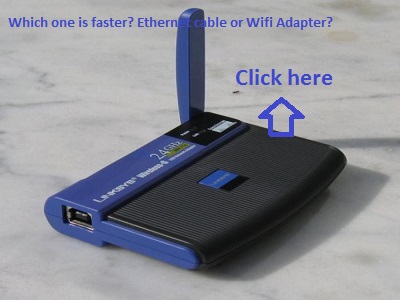
Which has faster speed Ethernet cable or wifi adapter

Today  I  am   going   with   a   post  "which  has  faster  speed   Ethernet  cable  or  wifi  adapter". While  using   Internet   on   laptop   we   have   two  options  to  use Internet.1: By   using   Ethernet   cable;2:By   using   wifi  adapter;But  the  question  arise  that  which  method  should  be  used  to  connect  to  the Internet  more safely  and  easily  without  hesitation  and  tension. Both  the  methods has  some  limitation  and some  advantages.  Now  I  am  showing  some  points which  will  clear  the  concept  and  makes  it easy  for  you  to  decide  which  method should  be  used.


Internet router powered by wifi and ethernet cable
Which has faster speed wifi or ethernet cable?

(1)-- Advantage  of  wifi  adapter:


  • It  is  with  out  any  wired  contact  which  is  its  most  useful  aspect
  • It  can  be  used  at  more  distance  from  the  router  which  adds  significance  to  its  positive  side
  • It  doesn't  need  an  extra  cable to  connect  to  the  Internet
  • This  system  is  wireless
  • The  free  wifi  wireless  system  at  public  places  is  most  used  positive  aspect  of  the  wifi adapter

Limitation  of  wifi  adapter:

  • It  is  more  power  consuming  of  the  laptop
  • It  drains  the  laptop  battery
  • It  has  comparatively  less  speed  as  compared  to  the  Ethernet  cable  but  the  speed difference  is  very  less  when  is  near  to  the  router
  • The  Internet  speed  is  less  when  are  far  away  from  the router 

(2)-- Advantage  of  Ethernet  cable:

  • The  Internet  speed  of  Ethernet  cable  is  more  than  wifi  adapter
  • It  is  not  power  consuming 
  • It  is  efficient  method  for  using  Internet  on  laptop
  • It  doesn't  drain  the  battery

Limitation  of  Ethernet  cable:

  • It  needs  a  wired  contact
  • The  wired  contact  causes  tension  and  hesitation
  • This  method  only  work  when  you  are  near  to  the  router

Conclusion:

Hope  I  have  covered  all  the  topic  clearly  and  efficiently.  If  you  still  facing some  problem  or having  some  argument  then  please  comment  below  and  also share  the  post  with  your  friends.
   

Posted By: Dr Rehman on Tuesday, 7 April 2015

Monday, 6 April 2015

How to record better sound on pc with mic

If you want to record high quality sound without spending a penny then you are at right place. I will teach you how to record better sound on pc without spending any penny.   For this purpose we will use a free version of software named Audacity with which you can record your audio and also edit it whatever you want.Below is the specification of this great and free software

Audacity:

 Audacity(R) is a free, open source (cross-platform) digital audio editor, recorder and mixer. It is a mature software application, that comes with a long list of features such as:
 - recording (from a microphone or mixer)
- import/export of WAV, AIFF, AU, FLAC, MP3 (via LAME encoder) Ogg Vorbis files
- advanced editing (cut, copy, paste, delete commands with unlimited "Undo" and "Redo", multitrack mixing)
- digital effects (change the pitch, remove background noises, alter frequencies, remove vocals, create voice-overs for podcasts etc.) and plug-ins (support for LADSPA, Nyquist, VST Audio Unit, including VAMP analysis plug-ins).

 - recording (from a microphone or mixer)
- import/export of WAV, AIFF, AU, FLAC, MP3 (via LAME encoder) Ogg Vorbis files
- advanced editing (cut, copy, paste, delete commands with unlimited "Undo" and "Redo", multitrack mixing)
- digital effects (change the pitch, remove background noises, alter frequencies, remove vocals, create voice-overs for podcasts etc.) and plug-ins (support for LADSPA, Nyquist, VST Audio Unit, including VAMP analysis plug-ins).


Adaucity application main photo
Audacity(R) Review:
 Setup: Please note that when you install Audacity(R) for the first time (in Windows), you will be prompted to install two shipped DLL effects (hard limiter and sc4) which are not actually VST's, and they will load in Audacity whatever you decide in the dialog. You can find them in "Plug-Ins" folder and if you need to add a new effect later, you should check the manual, section "Adding a new VST effect in Audacity(R)".

Conclusion:

  There is much more to explore and discover in Audacity(R). You can perform multitrack recording and editing, create mono/stereo recording and even surround sound. The plug-ins (also known as add-ons) helps Audacity(R) to offer even more features: special effects, filters, tone generatos and analysis capabilities. I will jump over a lot of other features that I didn't list and I will say that you can customize this editor in many ways but this is a territory for advanced users.

Download:

click photo to download

 I hope that you liked my post. If you still facing problem then please leave us a comment. Don't forget to share this useful post with your friends to spread the knowledge.

Posted By: Dr Rehman on Monday, 6 April 2015

Tuesday, 10 March 2015

How to unblock websites using proxy

There are different regions where different websites are blocked by government due to different reasons. But these websites being advantageous for users are very important for them.Now the question arises what to do in such situations when you want to view such a site and it is banned in your region like youtube in Pakistan.

What is Proxy?;

Proxy is alternate server which change your ip address and thus showing mock location. If you connect yourself to the united states then all sites that are accessible in united states can be viewed by you even if such site is banned in your area.

What to do?;

Connecting yourselves to the proxy network is not too much tough job. It can be accessed through several methods but my most preferred method is using "Zenmate extention in your default browser" like chrome, IE and Opera.

How to add Zenmate Extension to the browser?;

Adding Zenmate Extension to your browser is not too much tough but I think it is very easy.Let's have a watch.
Download page of zenmate extension


  • Type the address"http://zenmate.com" in your default browser or click here.

  • If your default browser is Chrome browser then click on "1"
  • If your default browser is other than chrome then select your browser as shown in "2"
  • After that extension is downloaded and installed click on Zenmate extension in your browser
  • After clicking for the first time it will require registration but don't be afraid you will just give your email id and your account will be registered.
  • Once your account is registered click on the extension and click "off " in the drop down menu to activate the extension as shown below;

Zenmate extension when activated
If you still have some problem then please let me know in the comment section. Don't forget to share this interesting post with your friends to spread the knowledge

Posted By: Dr Rehman on Tuesday, 10 March 2015

Contact Us

Name

Email *

Message *


Recent Comment

Copyright © 2015- . Grat Spot . All Rights Reserved.
Designed by :- Muhammad Rehman